
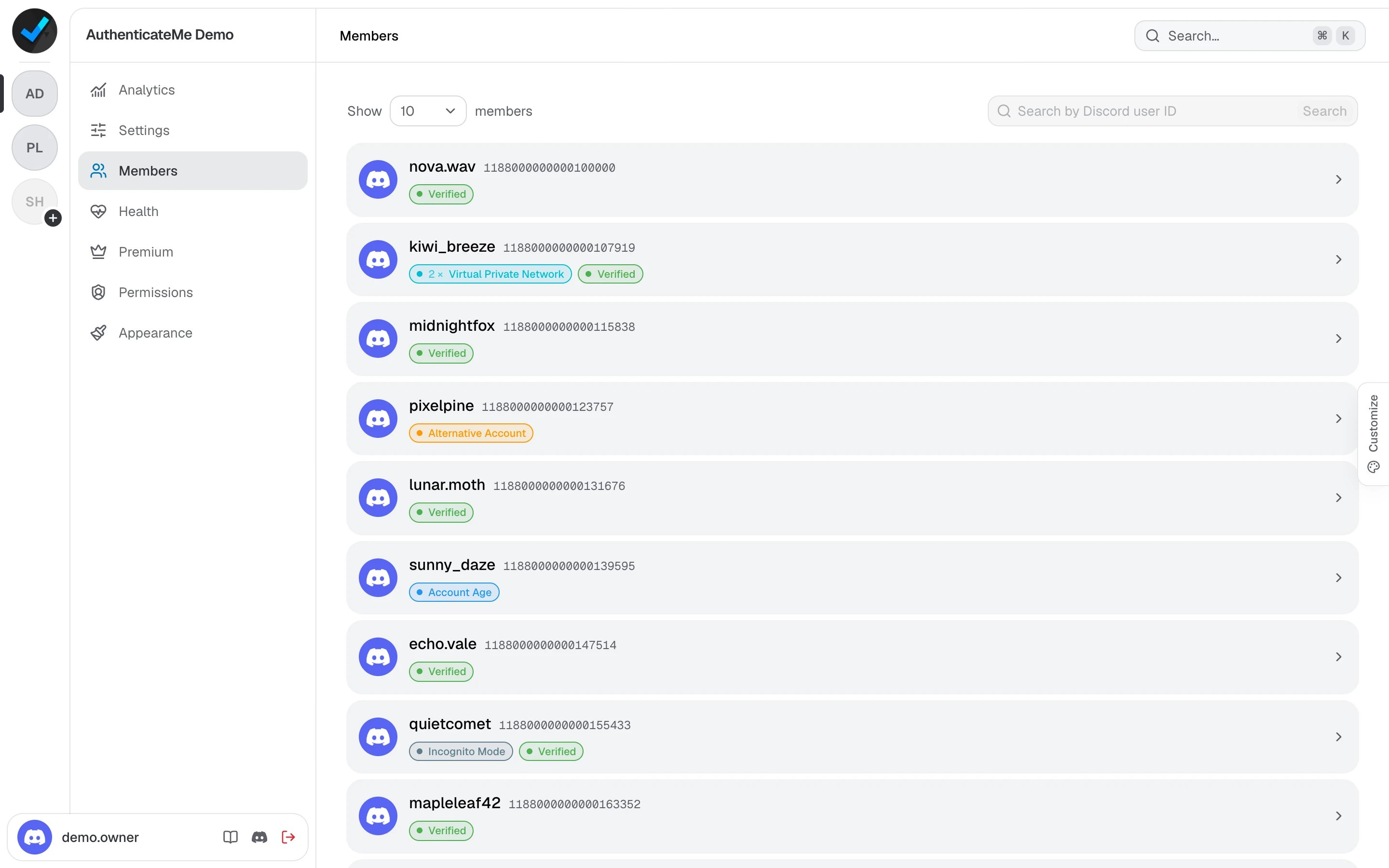
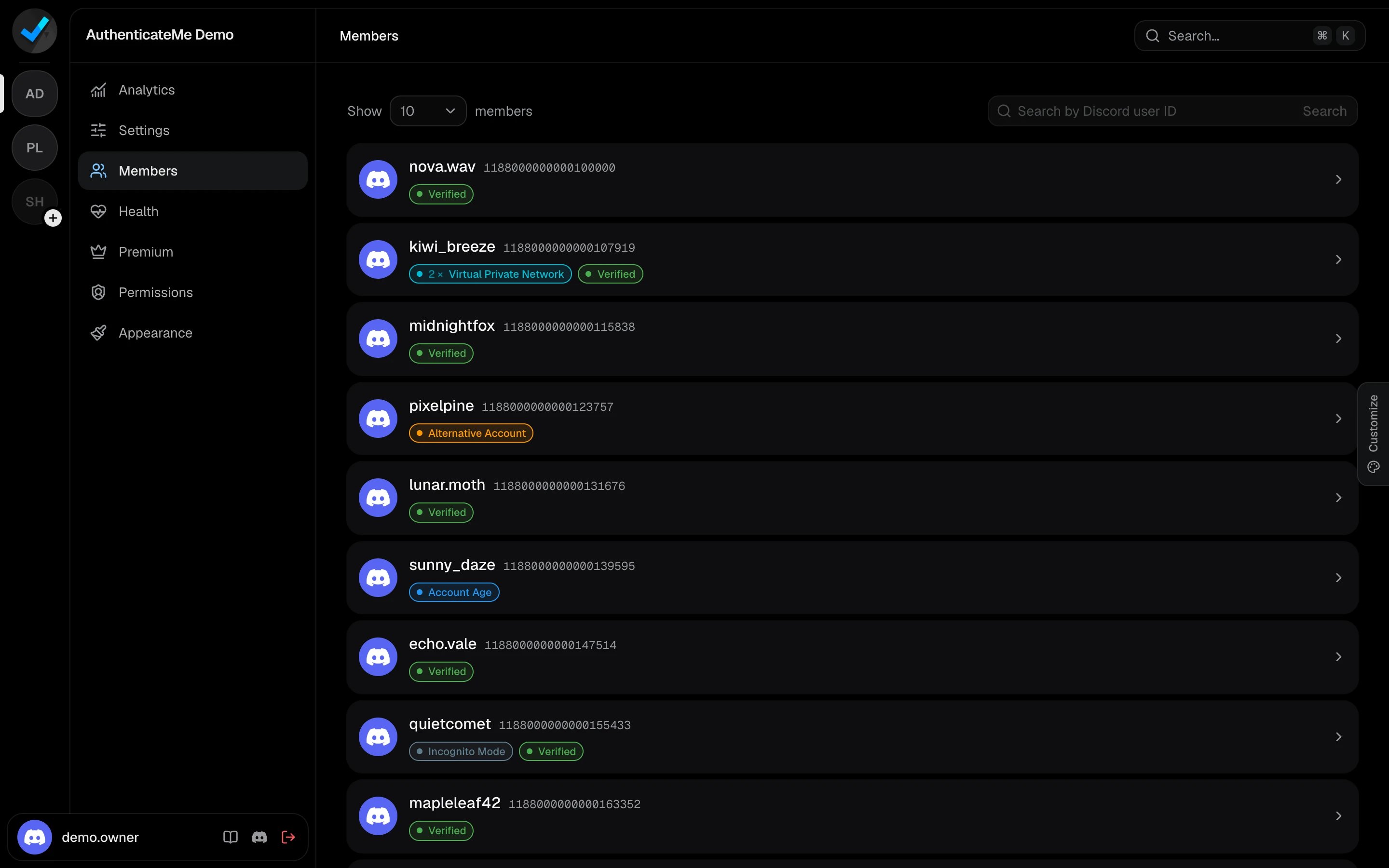
The Members page lists everyone who has gone through verification in your server, newest first. Each row shows the member’s results, such as Verified or 2 × Virtual Private Network, in the same colors used in your logs and analytics.
The Members page listing members with their verification resultsThe Members page listing members with their verification results

Find a member

Paste a Discord user ID into Search by Discord user ID and press Search. To copy someone’s ID in Discord, turn on Developer Mode under Settings → Advanced, then right-click the member and choose Copy User ID. Use Show to list 10, 20, 30, or 50 members per page.

Verification history

Click a member to open their history. It lists every attempt with its result and when it happened. Click the user ID at the top to copy it.
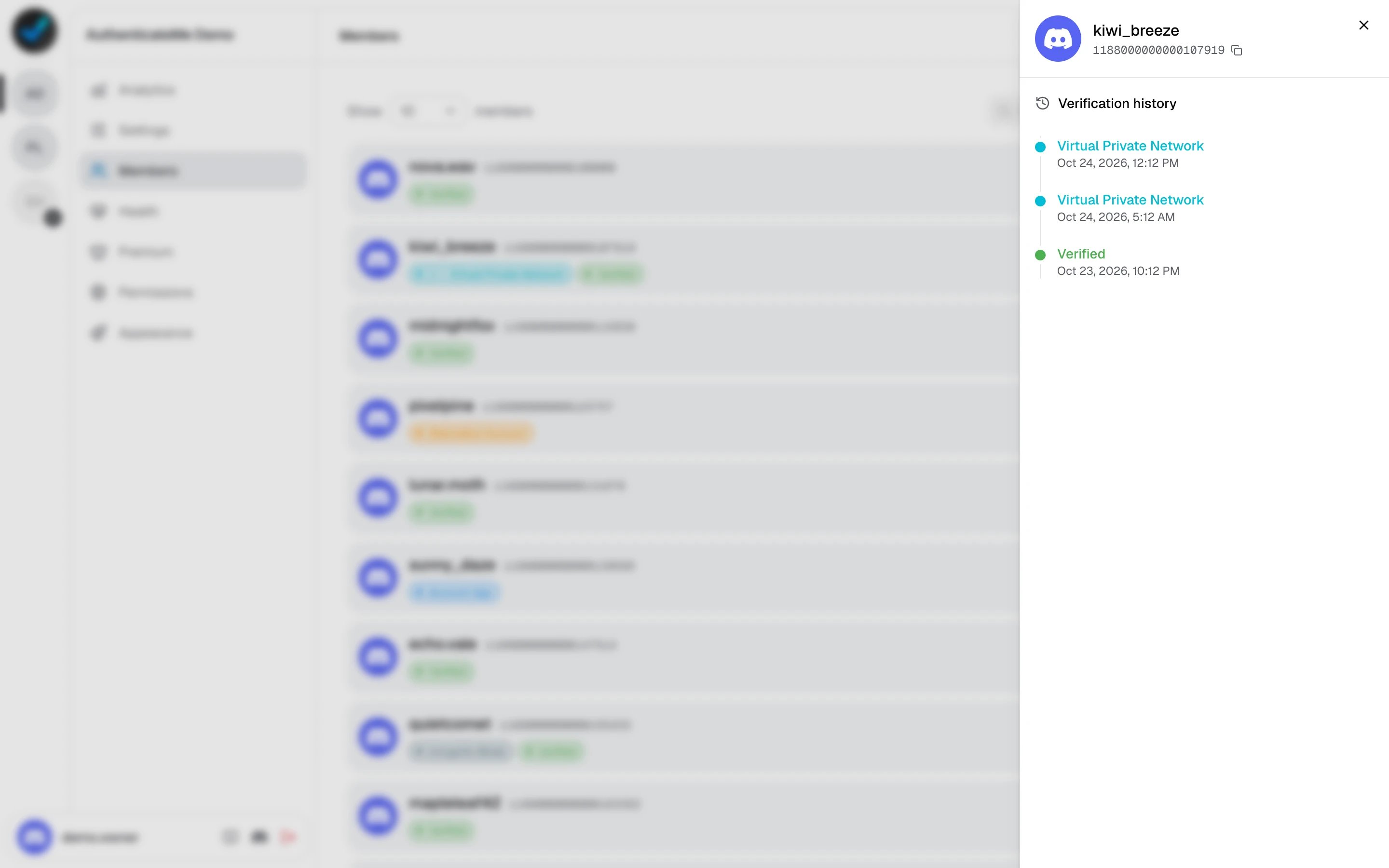
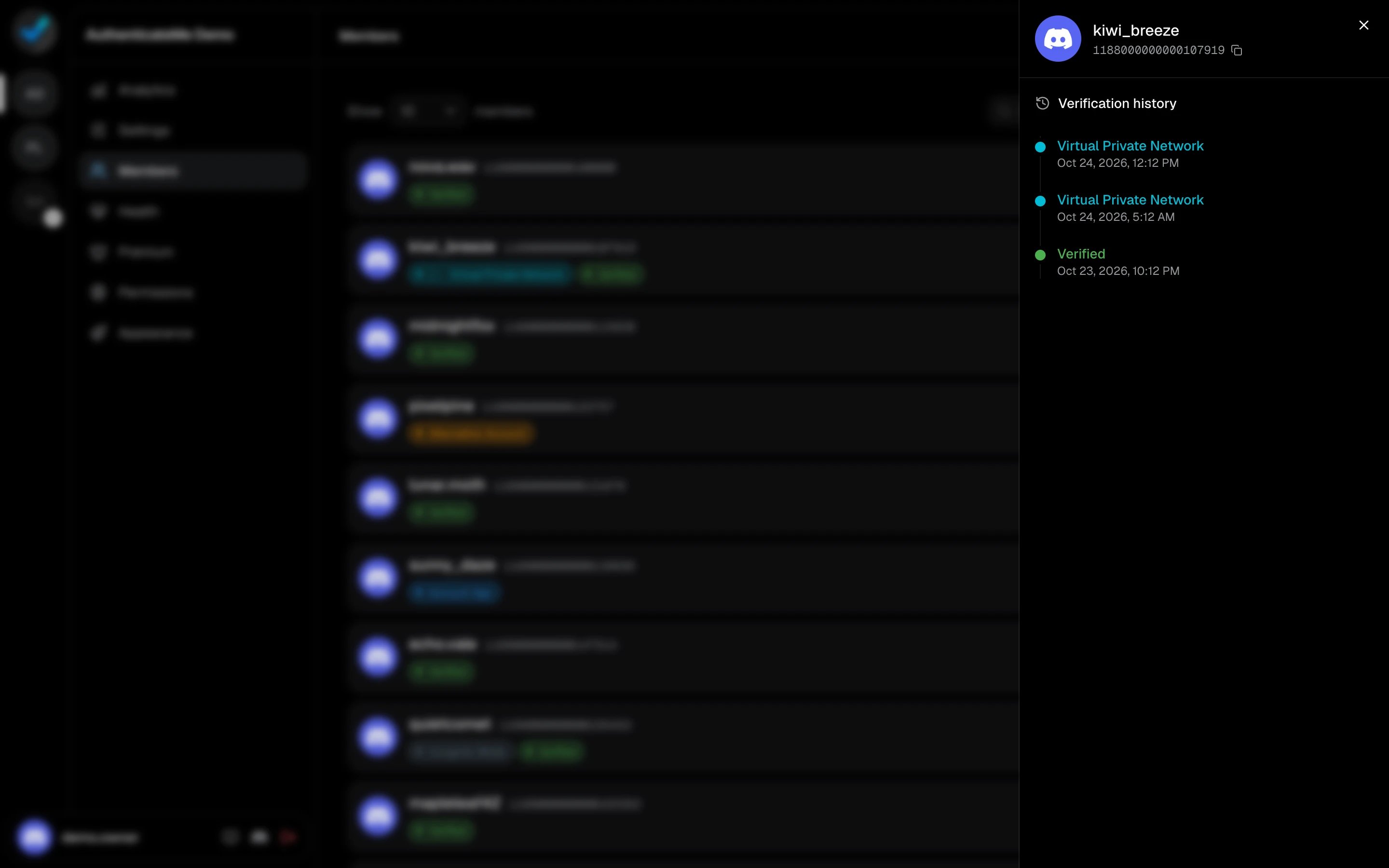
A member's verification history, with two VPN detections followed by a successful verificationA member's verification history, with two VPN detections followed by a successful verification
A member who keeps failing the same check may need a bypass link, or you can verify them yourself.