Presets
Presets set every check at once. Pick one as a starting point, then adjust single checks below it.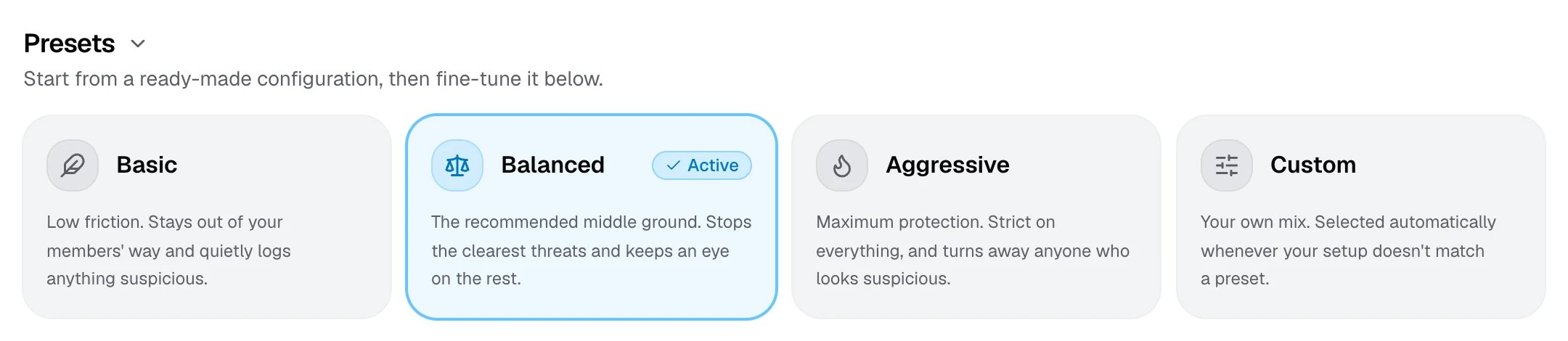
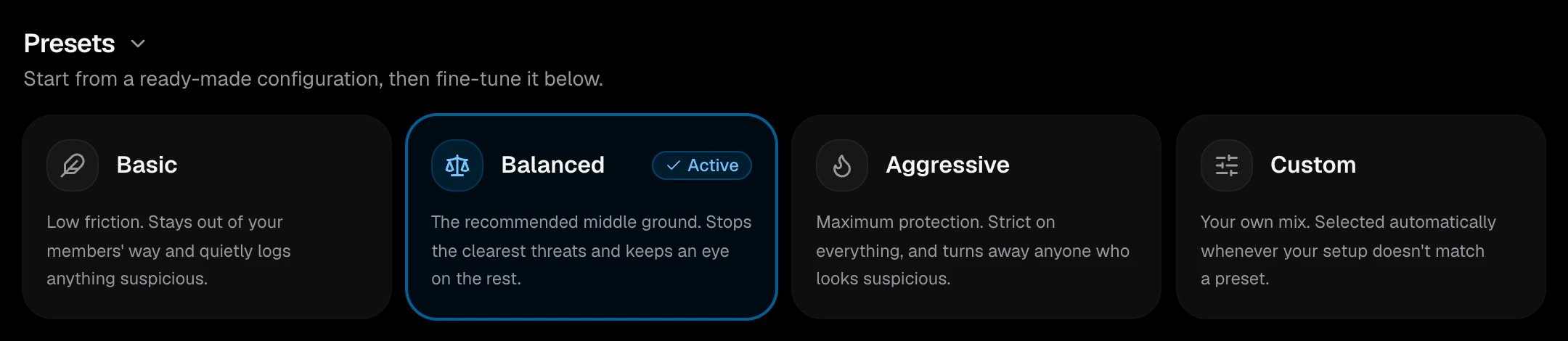
Basic
Low friction. Stays out of your members’ way and quietly logs anything suspicious.
Balanced
The recommended middle ground. Stops the clearest threats and keeps an eye on the rest. New servers start here.
Aggressive
Maximum protection. Strict on everything, and turns away anyone who looks suspicious.
Custom
Selected automatically whenever your setup doesn’t match a preset.
What each preset turns on
What each preset turns on
Presets never touch your roles, channels, messages, logs, alerts, GeoGate, Help Desk, Honeypot, Cooldown, or MFA Required.
Categories
Core
Roles, channels, logs, and how members verify.
Account
Screen the Discord account behind each member.
Network
See where members are really connecting from.
Browser
Spot browsers that hide, spoof, or automate.
Device
Know what machine is behind each verification.
Actions
Most checks have an Action that decides what happens when a member fails it.
The Honeypot also offers Timeout and Softban. A softban bans the member and unbans them right away, which deletes everything they posted in the last hour.
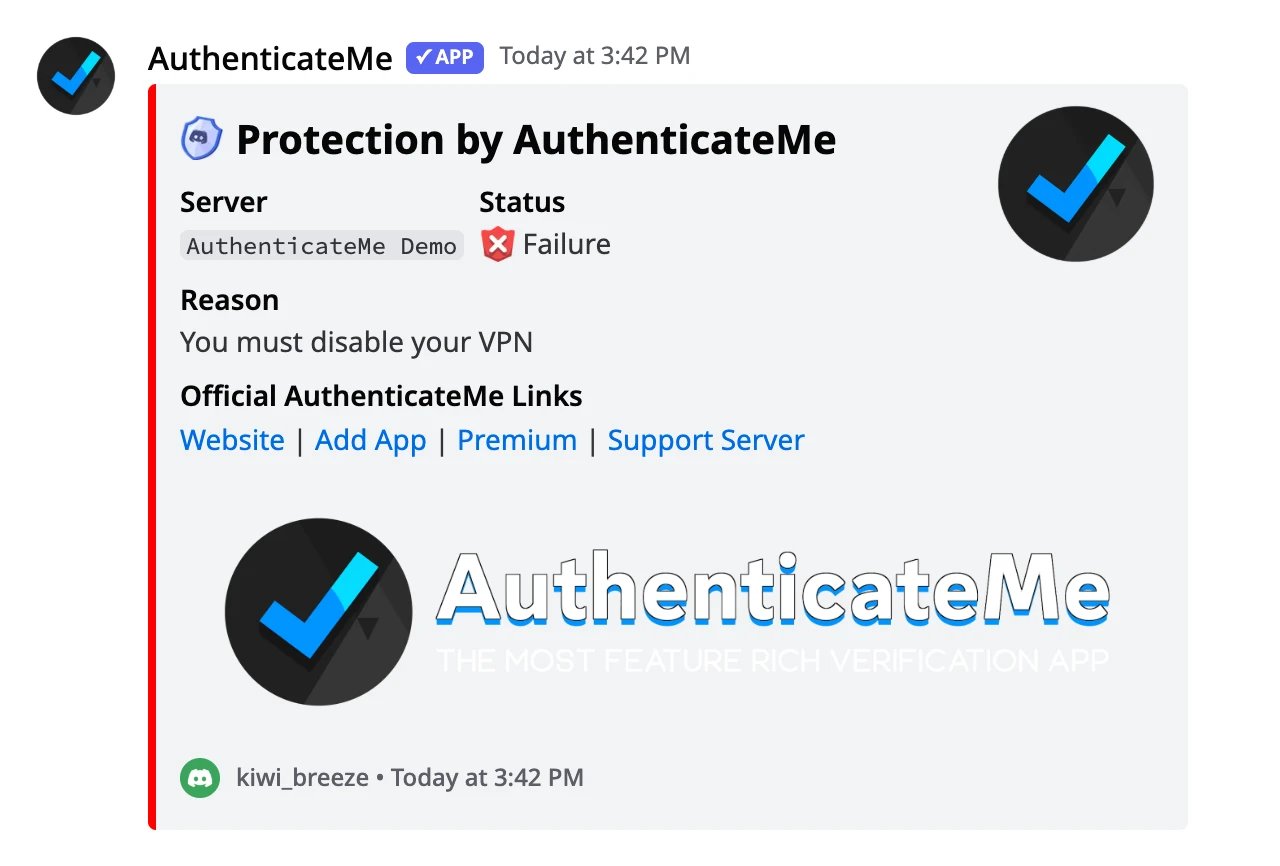
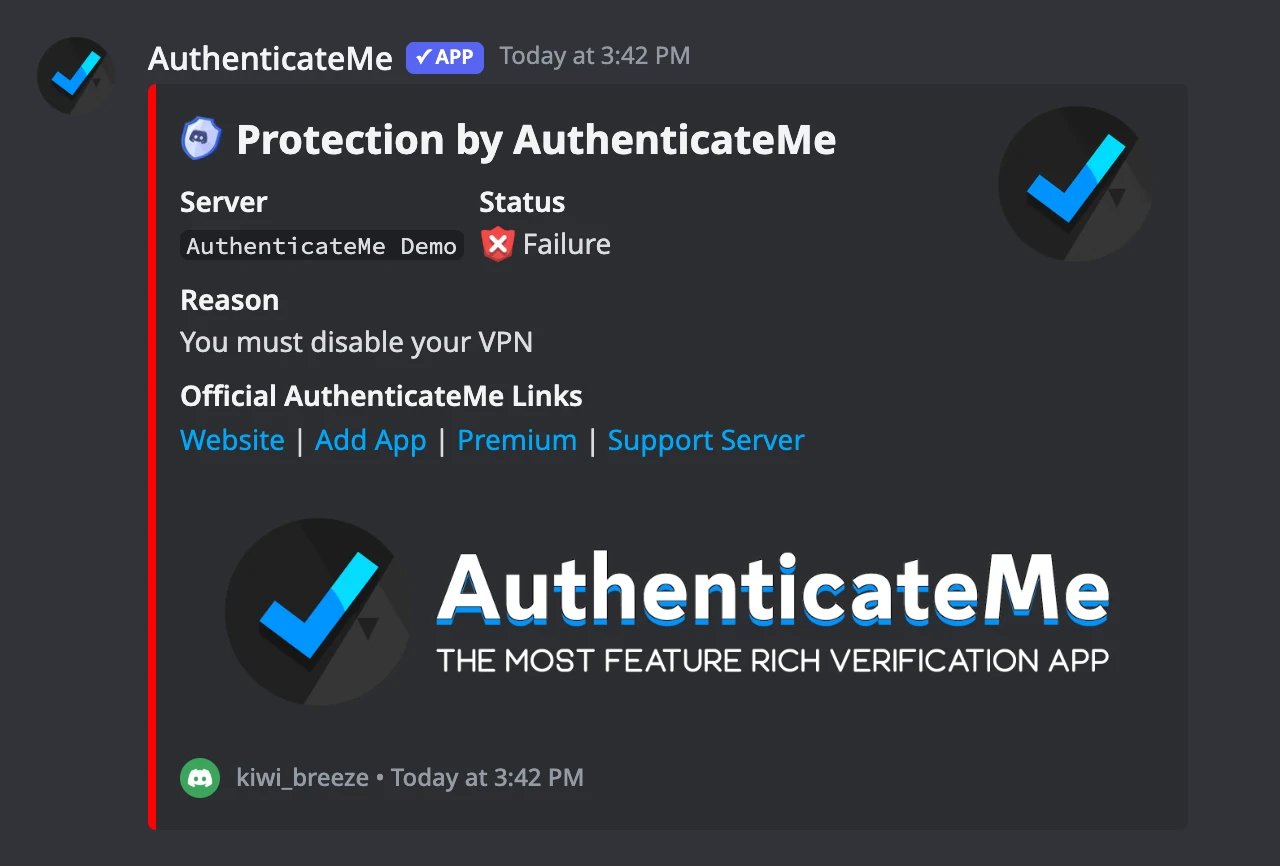
Whatever the action, the member never gets the Verified Role from a failed attempt, and the failure is posted to your logs if you’ve set them up. The member also gets a DM that tells them why.
Which checks run where
Only four checks can run in Button-Click and Instant-Grant mode, which are Account Age, Avatar Required, Cooldown, and Max Verifications. Every other check needs the Web-Link mode, because it reads the member’s browser, connection, or device. Checks run in a fixed order, and the first one that fails is the one the member sees.Find a setting fast
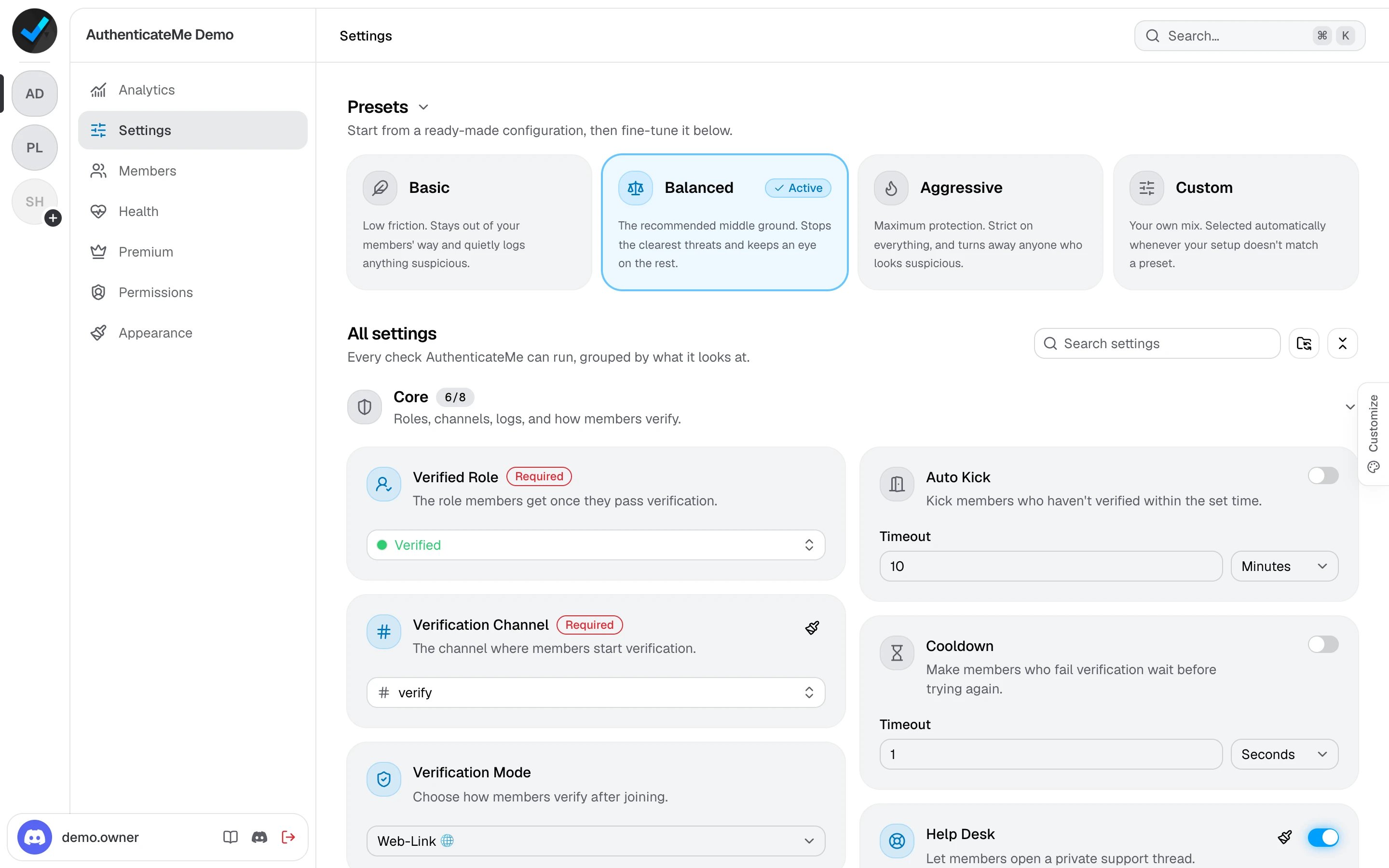
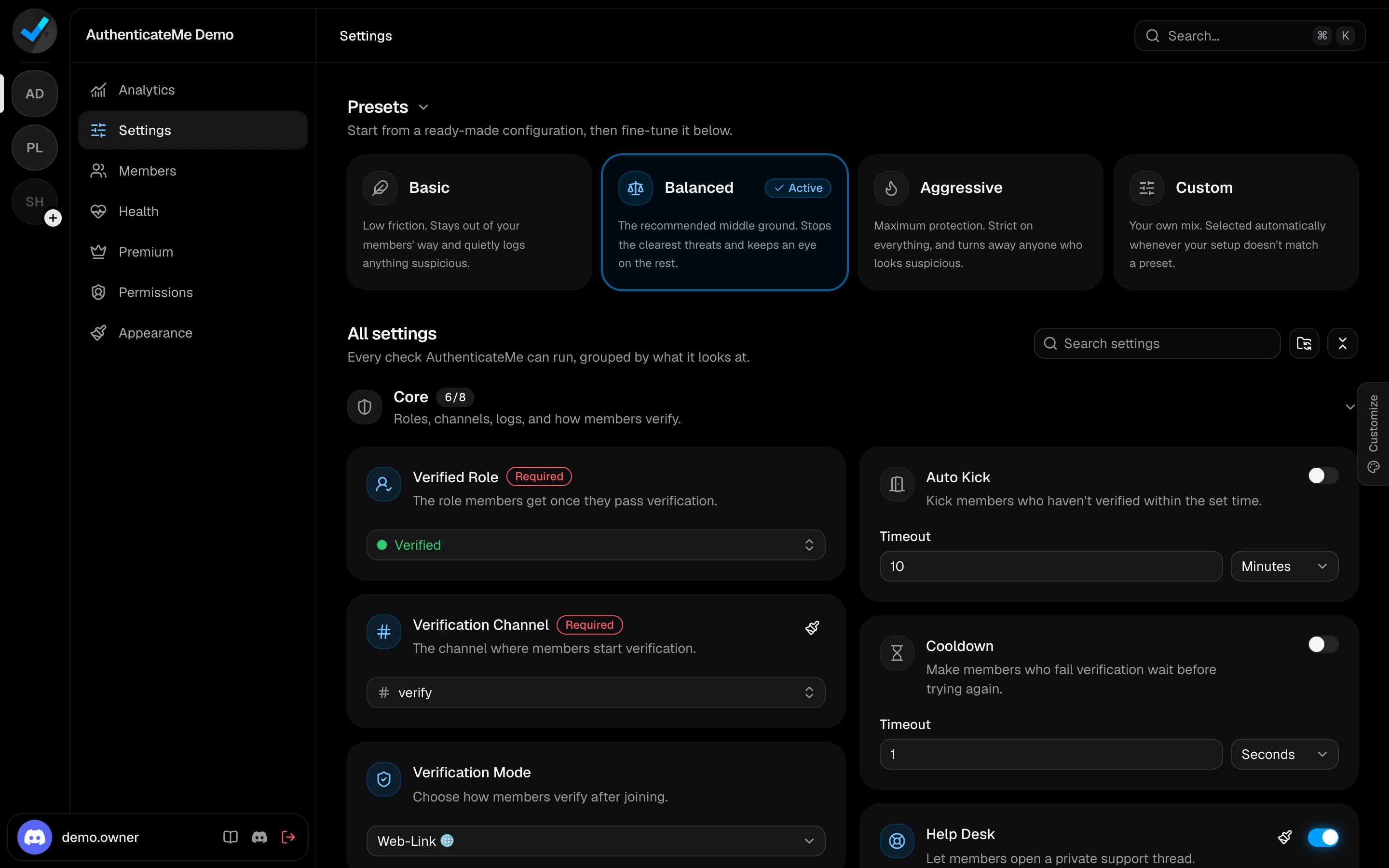
- Type in Search settings to filter the cards, for example “VPN” or “role”.
- Press Ctrl K (⌘ K on Mac) anywhere on the dashboard to jump straight to a setting.
- Click the ? next to a setting’s name for a short explanation.
Copy settings between servers
Use the folder button next to the search box to copy your setup to another server you manage.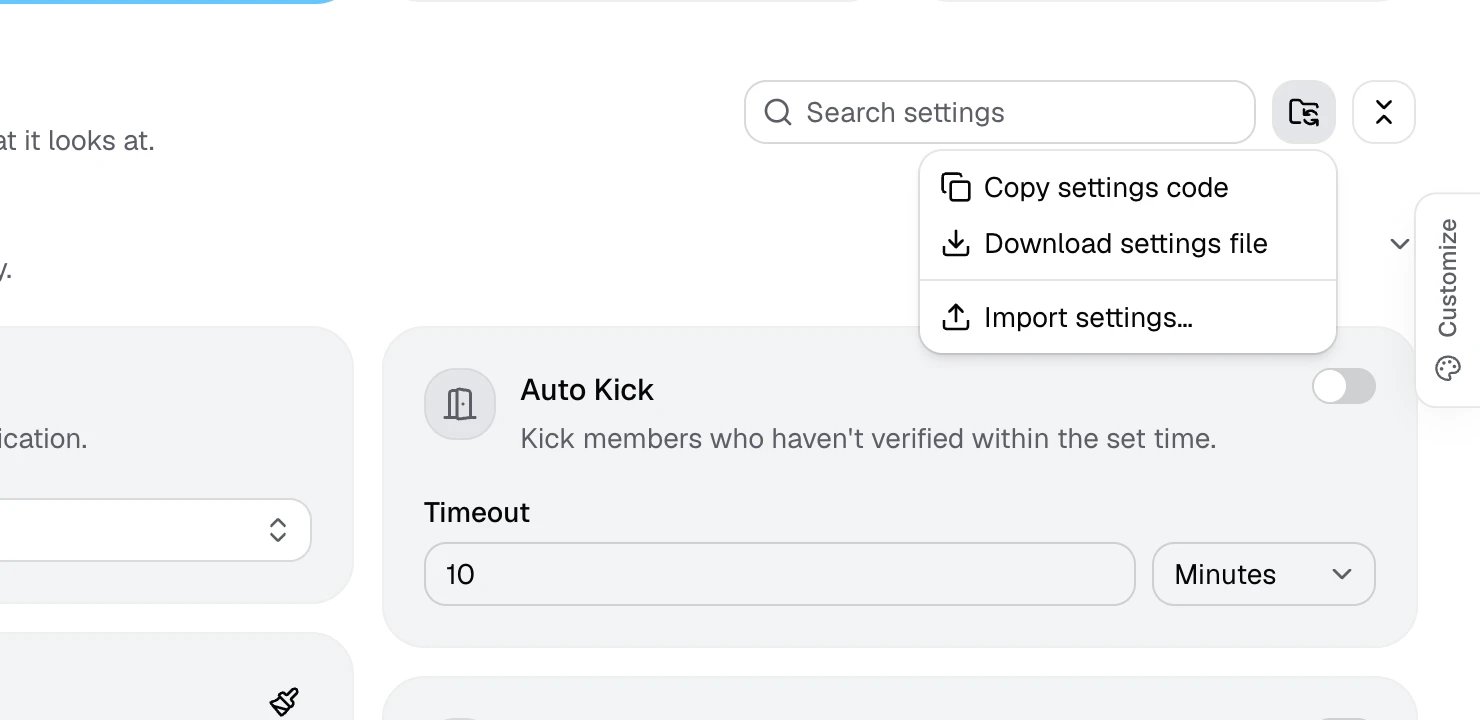
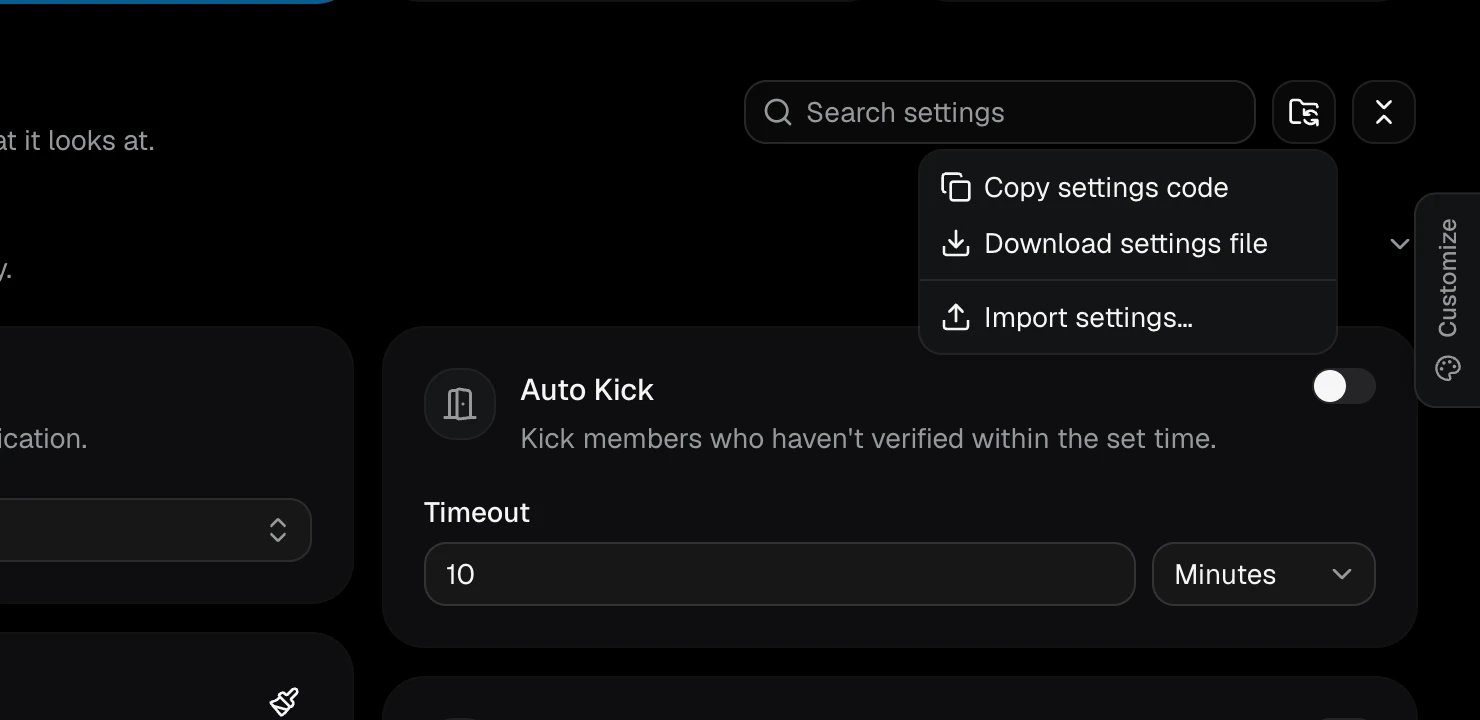
- Copy settings code copies the setup as text.
- Download settings file saves it as a
.txtfile. - Import settings loads a code or a file of up to 64 KB.