Set it up
1
Turn on GeoGate
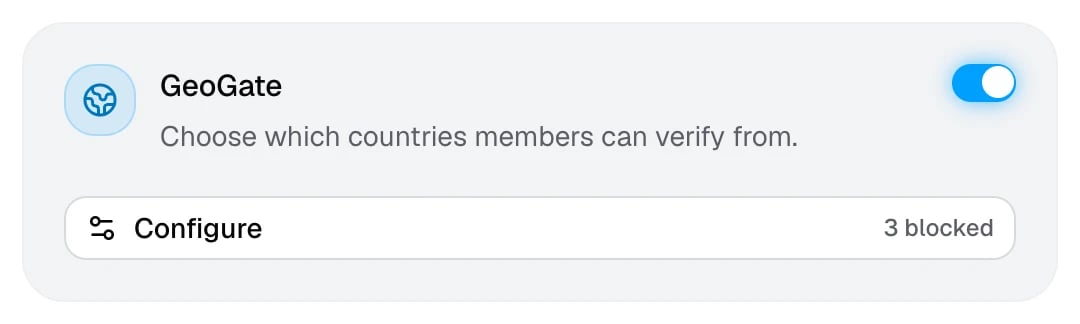
In Settings → Network, switch on GeoGate and click Configure.
2
Choose a list type
Blocklist
Members from the selected countries can’t verify.
Allowlist
Only members from the selected countries can verify.
3
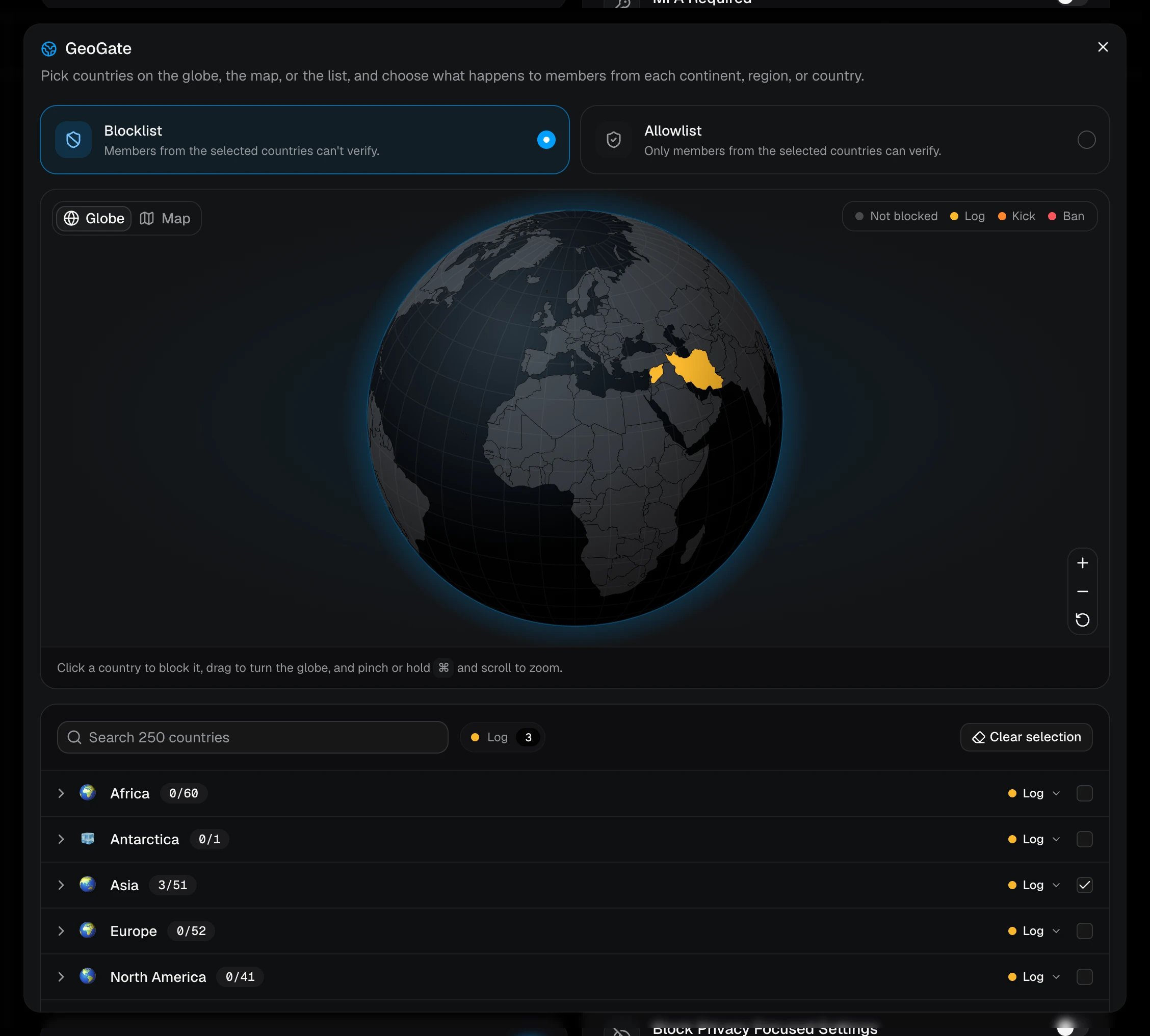
Pick countries
Click countries on the Globe or the flat Map, or tick them in the list below it. You can search all 250 countries and territories by name, or tick a whole continent or region at once.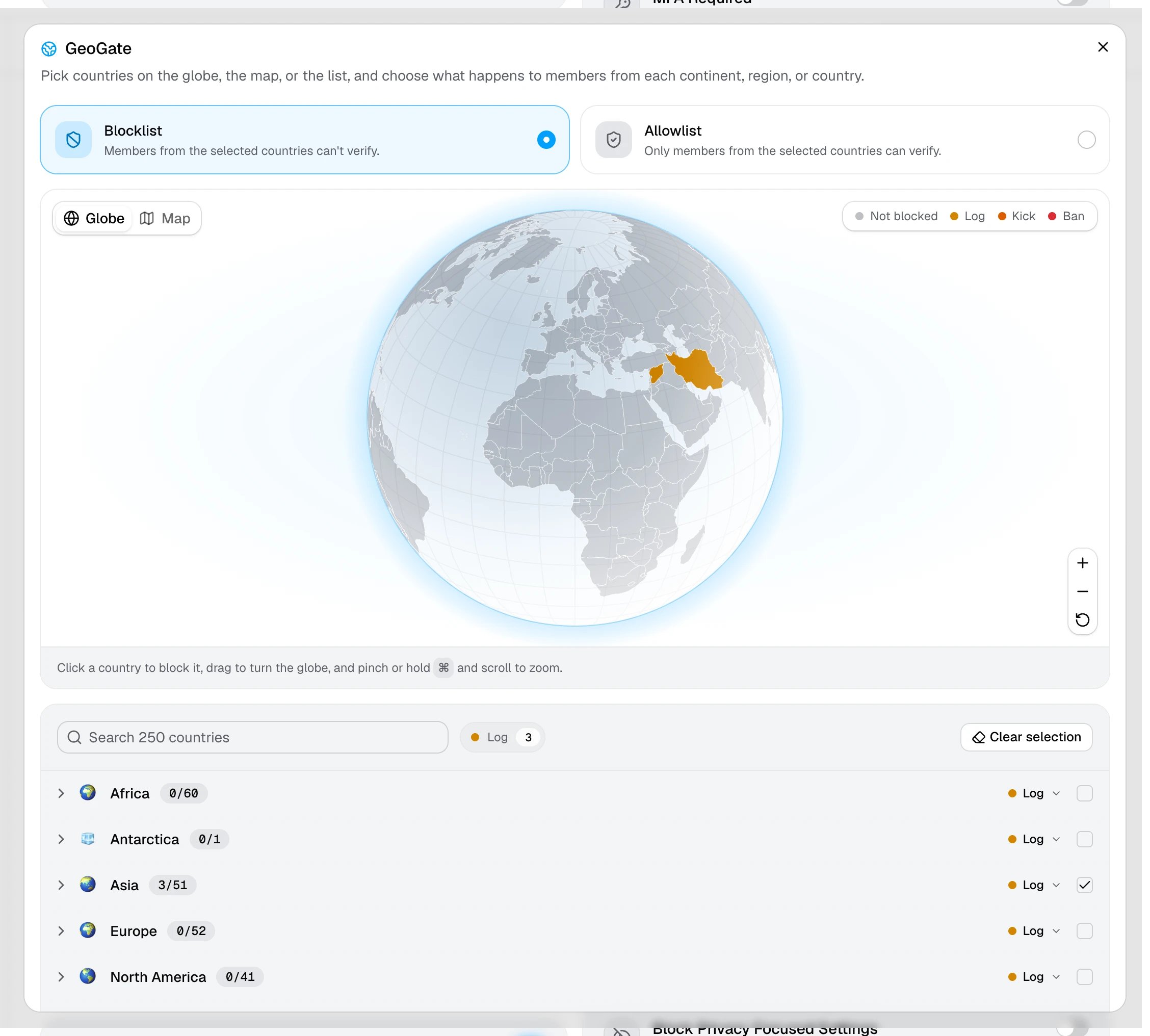
4
Choose the actions
Each continent has its own action, which is Log, Kick, or Ban. Expand a continent to set a different action for one of its regions or countries. The colors on the globe show the action each country gets.
5
Save
Close the window, then click Save changes. The GeoGate card shows how many countries you’ve picked.
Which action applies
When a member is caught, AuthenticateMe uses the most specific action you’ve set. A country’s own action comes first, then its region’s, then its continent’s. For example, with Europe set to Log and Russia set to Ban, a member verifying from Russia is banned, while a member from any other blocked European country is only logged.What members see
Members from a blocked country see “Blocked by GeoGate”. With an allowlist, members from any other country see “Not allowed by GeoGate”. The log shows the member’s country, whether the server uses a blocklist or an allowlist, and which action was taken.The country comes from the member’s IP address. A VPN can make someone appear to be somewhere else, so pair GeoGate with Block VPN.